The Explorer View
The Icon View

In this view, diagrams and folders are represented as icons. For diagrams, a small preview is provided that allows you to find the diagram you're looking for faster.
Details about a selected diagram can be found at the bottom of the Explorer in the activity panel (see Viewing diagram details) .
When working on diagrams collaboratively (in SAP Signavio Process Collaboration Hub, for example), you can comment on diagrams and diagram elements. Unread comments that were created by users who aren't members of your workspace are marked with a little speech bubble symbol in the Explorer.
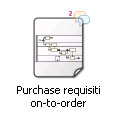
To view your colleagues' comments, open the respective diagram in the Editor. To read more about commenting, go to section Comments.
The List View

Diagrams and folders are listed along with additional information about each file. Selecting an element activates the diagram preview in the preview panel at the bottom if the panel is extended.
Choosing the title of a row sorts the elements by the selected column.
Managing the List View
You can individually configure which of the diagram attributes are shown as columns in the table view. All attributes on diagram level and the attributes Revision , Last Change , Last Author and Published are available.
To configure the list view, proceed as follows:
-
Choose Setup , then Edit general configuration . A dialog box opens.
-
In the Explorer section, you can edit the table columns preferences. Choose Add attribute to add another attribute to the list view.
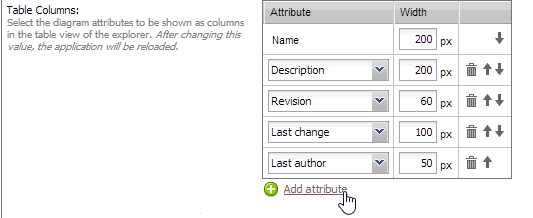
You can rearrange the order of the attributes using the arrow icons and configure the size and the position of the attribute column. To delete an attribute from the list view choose the trash button.
-
Choose Save to save your settings. The list view is updated with the attributes you've configured.
Refreshing the Explorer View
After saving a diagram in the editor (after renaming it, for example), the explorer view is not up-to-date anymore.
You can refresh the explorer manually: Reload your browser window or use the Refresh  button in the top-right corner of the explorer.
Display of the Current Path
In both the list and in the icon view, you see the file path on top of the list. If you want to jump to a parent folder, choose the corresponding folder name.
The following example shows how to jump back to the Shared documents folder:
