Enabling Diagram Embedding
Since you cannot publish a model yourself, you also cannot activate the embedding.
If you want to share diagrams publicly, enable diagram embedding.
To enable diagram embedding, proceed as follows:
-
Select the diagram you want to embed in the Explorer.
-
Select Share > Embed diagram. The Embed diagram dialog opens.
-
If you haven't already, enable embedding by clicking Share diagram for read-only access. The read-access for this diagram is activated.

You have now the following options to embed the diagram:
-
as an interactive element (embedding)
-
as a simple image
To embed a diagram in an external system, you have to explicitly allow the embedding. This can be reverted later on - in this case, all existing integrations of SAP Signavio diagrams will be deactivated.
Diagrams can be published on web pages by embedding them with HTML.
Several use cases for embedding are listed and explained in the following chapters.
Disabling diagram embedding
Embeddings of diagrams can be disabled at any time by withdrawing read access for these diagrams. This can also be set in the Embed diagram dialog. Select the link Stop sharing the diagram for read-only access :
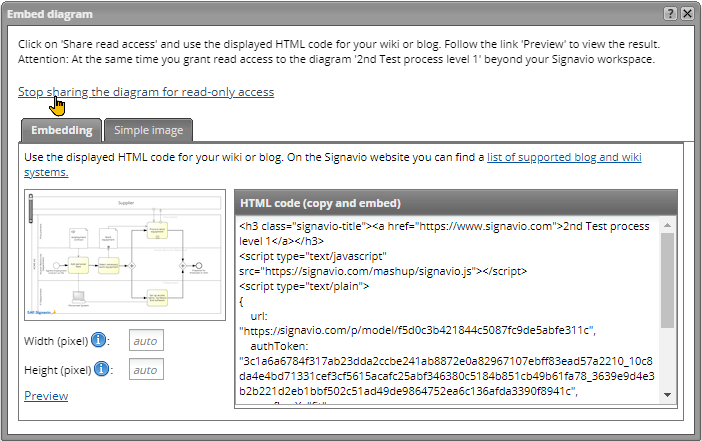
Via this link all embeddings become inactive, so that your diagram are no longer viewed on pages which previously have linked such a link.