Embedding Diagrams as HTML Code
You can embed a diagram using a HTML code snippet in a website or blog as an interactive element. The advantage of this method over a picture export is that the most current version of the diagram is always available on your page.
The following paragraph explains how to embed diagrams as an HTML code snippet into a blog or a web page like Blogger, TypePad, or WordPress.
To embed a diagram in your website or blog, proceed as follows:
-
Select the diagram you want to embed in the Explorer.
-
Select
 Share
Share  Embed diagram
 . The Embed diagram dialog opens.
 -
Open the Embedding tab and copy the HTML code snippet.

-
Paste the copied snippet in the desired location of the HTML code of your page or blog posts.
-
If the diagram is not shared for read access yet, choose Share document for read-only access .
If you select Stop sharing the diagram for read-only access in the embedding menu, the diagram will not be available on the web page and on any other pages it was embedded in.
-
See a list of Supported blog and content management systems to get an overview of supported systems.
The Diagram Preview
To embed your diagram optimally in your website, you have to option to alter the diagram's size and then to check size and aspect ration in a preview.
-
Specify the desired Width and Height . By default, it is set to auto , so the size of the interactive element adapts to the system it is embedded in.
-
Choose Preview to check the changes.
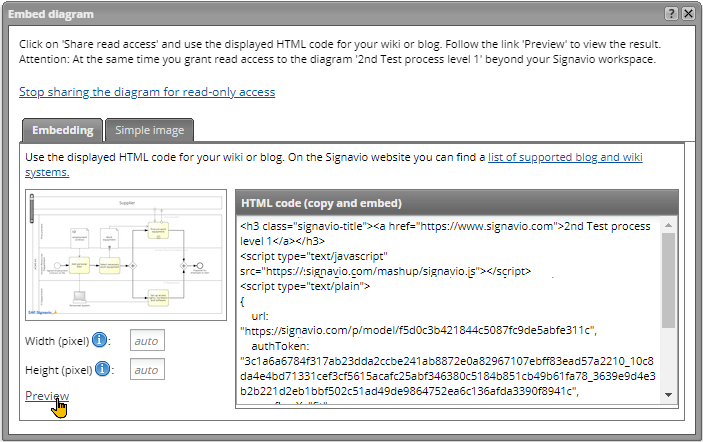
In the preview, HTML code is displayed in addition to the interactive element. A zoom slider and scrollbars are added automatically.
