Add and Connect Elements
How to add elements to a diagram from the shape repository or the interactive shortcut menu, pools, lanes, and gateways. How to connect elements with sequence flows and message flows.
You have the following options to add elements to a diagram:
-
You can drag elements from the shape repository onto the canvas.
-
You can use the interactive shortcut menu when you click an element on the canvas.
-
You can copy and paste elements.
Add Elements from the Shape Repository
The shape repository in the left panel of the editor lists all modeling elements available for a notation. For notations with lots of elements, elements are grouped into subsets. To change subsets, choose the current subset and select a different subset from the drop-down list.
In a subset, elements are grouped thematically.
To add an element, follow these steps:
-
Choose the element you want to add to your diagram.
-
Hold the mouse button and drag the element onto the canvas. Green
 (checkmarks) indicate where you can place an element.
 -
To label an element, select the element and enter the label text in the text box.
The label is saved when you choose outside the text box. Available dictionary entries are suggested while you type.
Add Pools and Lanes
Add a pool by dragging the Pool/Lane element onto the canvas. Collapsed pools can't contain elements.
Add a lane to a pool by dragging the Pool/Lane element onto a pool.
To add more lanes to a pool, drag a Pool/Lane element onto the left or right edge of a lane.
To add a sublane, drag a Pool/Lane element onto the center of a lane.
To reorder lanes, you have the following options:
-
Choose the header and drag the lane to it's new location.
-
Choose the header and use the arrow icons that are shown in the lane to move a lane up or down.
To move lanes up and down the hierarchy, use the arrows.
Connect Elements with Flows
To connect elements with flows, drag the flow onto the target element. You can also use the flow icons from the interactive shortcut menu.
When a connection is possible, green marks are shown on the edges on the element.

When a connection isn't possible, red marks are displayed on the edges of the element.
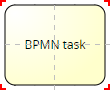
You can drag a new element onto a connector that already connects two elements. Then, the new element is added and connected automatically.
Add Gateways to Flows
When you drag a gateway onto a flow, the flow is split and connected to the gateway.
Copy Elements
You can copy elements to create similar elements. You can also copy parts of old diagrams to reuse in new diagrams.
-
Select the element you want to copy. Hold the Shift or Ctrl key to select multiple elements.
-
Choose
 (copy) or Ctrl + C to copy,
  (cut) or Ctrl + X to cut, and
  (paste) or Ctrl + V to paste elements.
Remove Elements
-
Select all elements you want to remove. To select multiple elements, press and hold the left mouse button and draw a frame around the elements, or press and hold the Ctrl key while you choose the elements.
-
Press the Del key on your keyboard or choose
 (Delete) in the toolbar.
The elements are deleted.