The Notification and Activity Feed
Once you have created diagrams and then updated or changed them at least once, you have the option to see what was changed by whom at what time in the activity panel.
When you select folders or diagrams, the explorer displays the activity panel at the bottom of the screen:

Notification Configuration
In the activity panel, you can set how frequently you receive email updates about specific diagram(s) or folder(s). If you subscribe to a folder, you will receive updates regarding all the diagrams and sub-folders contained within. You can daily, weekly or monthly notifications. Alternately, you can unsubscribe from notifications entirely.

Additional Functions
The activity panel provides a preview of the diagram/folder as well as detailed information and management options regarding its version history.
To access this preview, proceed as follows:
-
Select a diagram/folder.
-
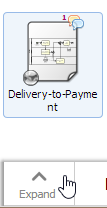
Choose Expand in the lower left corner of the Explorer. Alternately, you can use the space bar on your keyboard:
-
The panel expands, providing a visual overview of the diagram:

-
To view the activity feed and manage the change and version history of the diagram, choose Feed button. The activity feed will now be displayed.

-
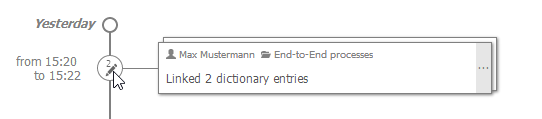
Hovering over the timeline provides you with specific time spans.
-
To gain a visual overview over an activity, choose Activity description.
The visualization will highlight the elements that have been changed.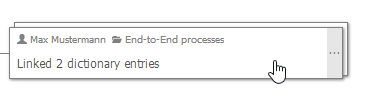

-
The overview also provides links to publish or comment the revision and to switch to the diagram comparison (see section Comparison).
-
If the selected revision is not the latest revision of the diagram, it is also possible to restore the revision (see section Restore older revisions of a diagram):

-
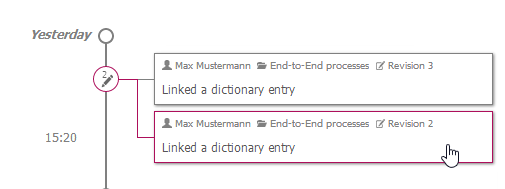
To get a more detailed view on an activity set, it can be opened to show all its single activities by clicking the dots on the grey stripe at the right side. Each activity will be displayed separately:
-
To hide the panel again, choose the space bar or choose Collapse.