Assigning and Activating Product Plans
The B2B administrators can associate product plans with the member groups.
Context
- product plan assignment
- product plan activation
With product assignment, admins create a list of potential product plans for purchase. Only the main admin, or root admin, is allowed to assign all existing product plans to their member groups and all their subgroups. The product assignment for all other admins is possible only for their subgroups.
Once the admin assigns product plans to a group, they need to activate them so that the plan becomes available for group members to purchase. Note that B2B Customers can only see, purchase, or search for products that have been activated for their unit (member group), while B2B admins can see all assigned products for that unit.
Assigning Product Plans
Learn how to assign a product plan to a member group or remove an assigned product plan when you no longer want it available for the group.
Prerequisites
Log in as the admin of a parent group or the root admin. For demonstration purposes, you can log in as the sample root admin, Thomas Schmidt, with the username of thomas.schmidt@sapfsa.com and the password you set for this username.
Procedure
- Click Assign in the Active Products row.
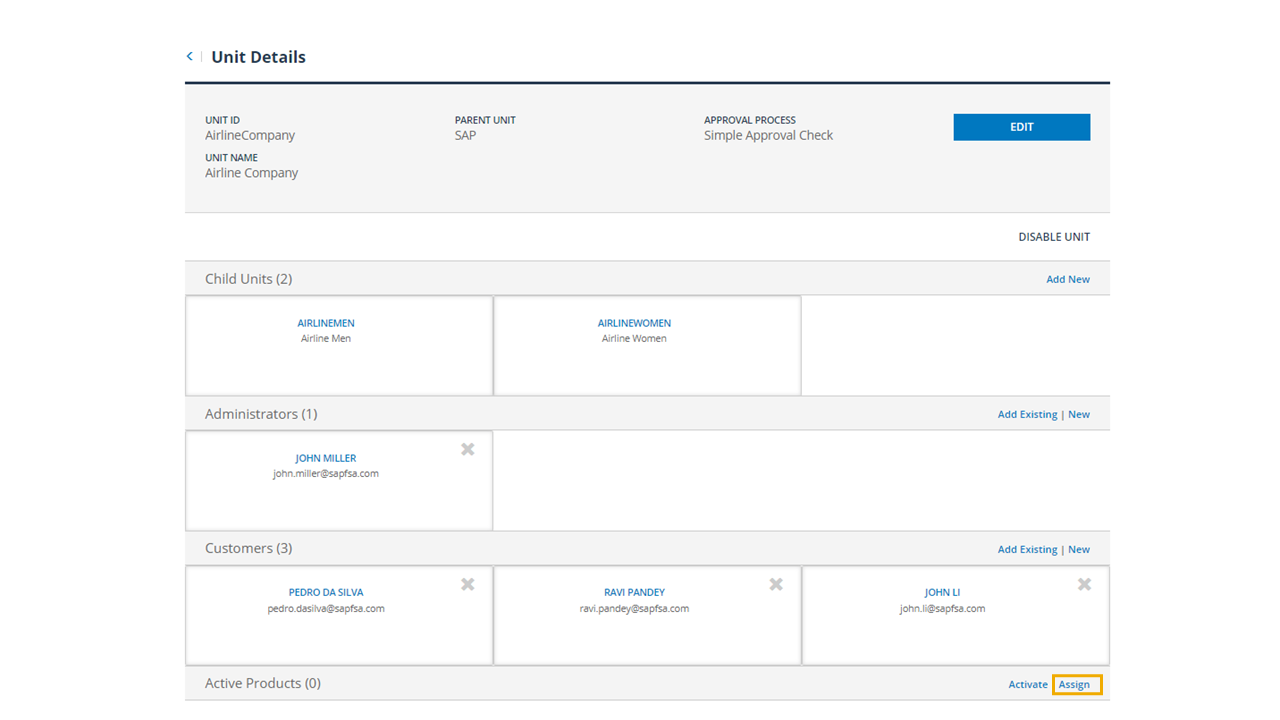 The available sample product plans are displayed.
- Click the
 button on all product plans you want to assign to the group.
Assigned product plans are now displayed in the Assigned section.

- To remove a product plan from the assigned product plans, click the
 button.
Activating Product Plans
Learn how to activate assigned product plans for a member group. You can also deactivate a product plan when you no longer want it available for your employees.
Prerequisites
Log in as the admin of a parent group or the root admin. For demonstration purposes, you can log in as the sample root admin, Thomas Schmidt, with the username of thomas.schmidt@sapfsa.com and the password you set for this username.
Procedure
- Click the
 button on each assigned product plan you want to activate.
- Click Done.
Active product plans are now visible to the group members on the Unit Details page.
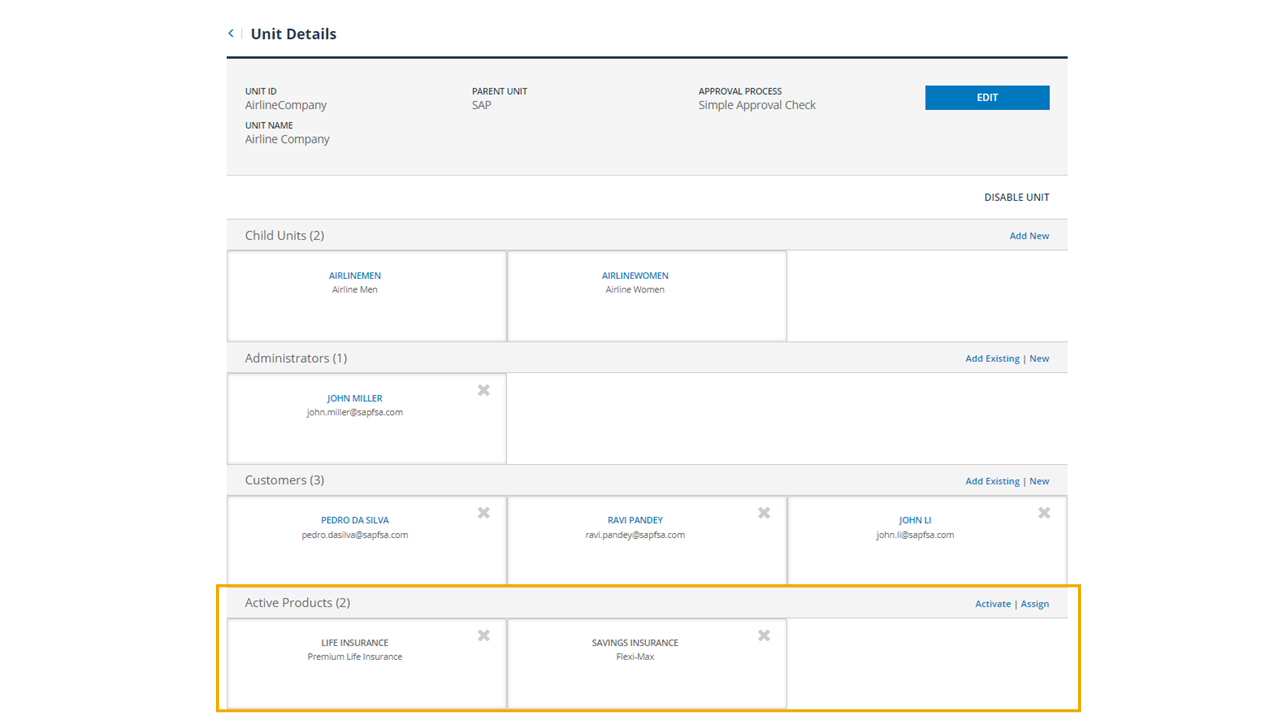
- To deactivate a product plan, on the Unit Details page, click the
 button on a plan you want to remove.