Viewport Layouts
Use
Multiple viewports enable you to see models in various layouts. The layout can be changed to arrange the viewports in various ways including resizing the viewport windows. When you click a viewport, it becomes active immediately and the viewport frame is highlighted in yellow. Inactive viewport frames are gray.

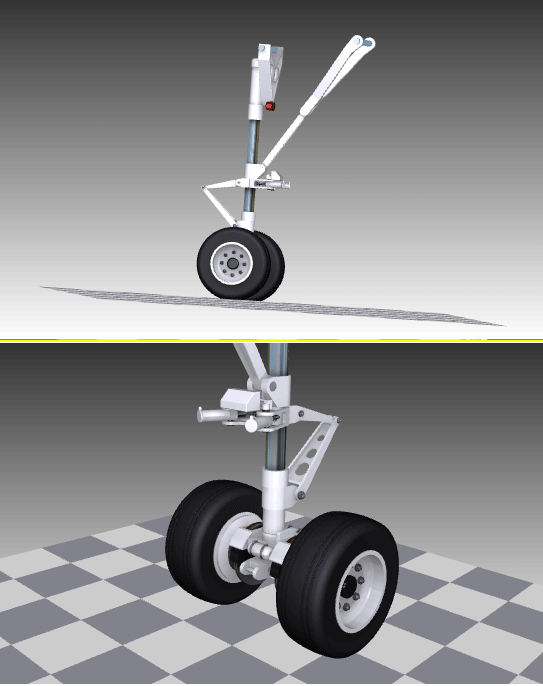

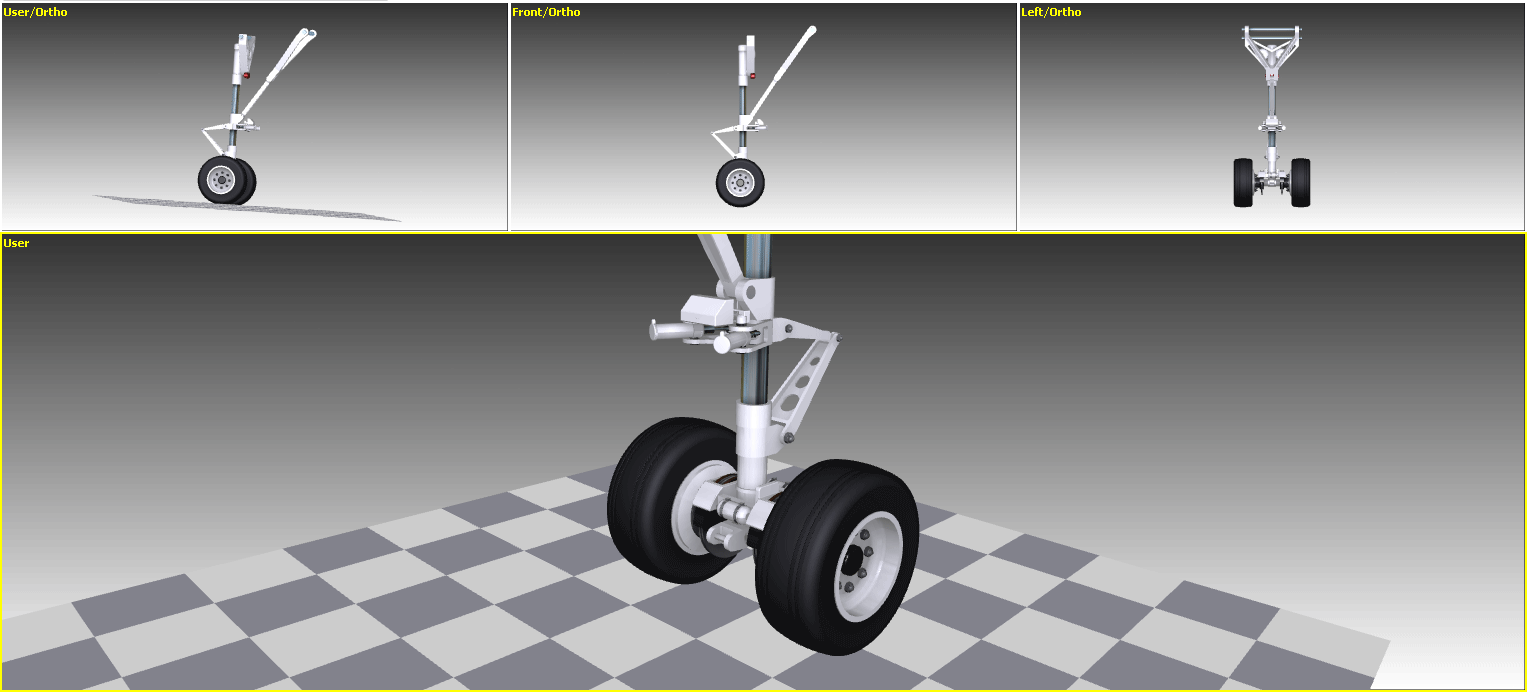
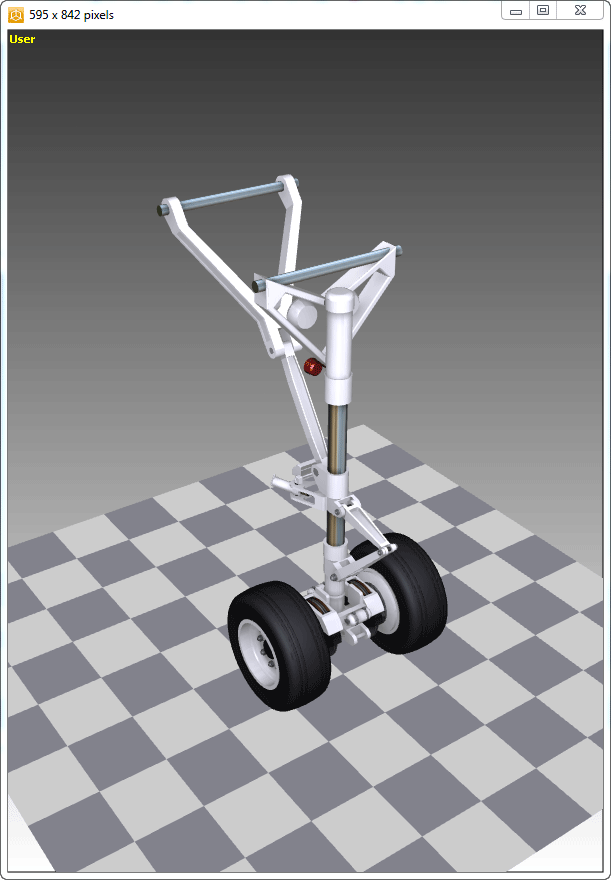
The active viewport remains so when you change the layout. It is also always either the largest viewport displayed or is displayed at the top, left of the workspace depending on the layout you select.
The viewport layout can be saved within .rh version 4.0 files in the Object Properties window. When the file is opened again, that layout is displayed automatically regardless of your current layout selection.
Render Modes and Scene Elements
Each viewport can display a different render mode and different scene elements.
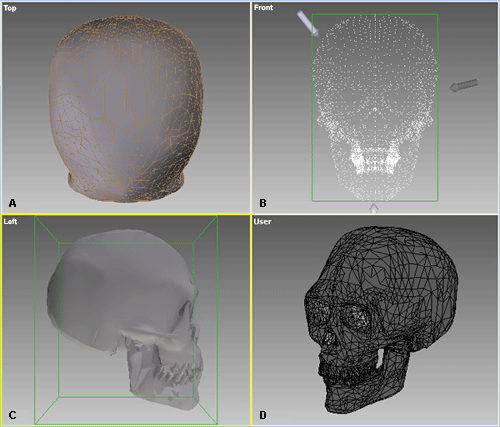
The render modes and certain elements can be displayed globally for all viewports or locally in individual viewports depending on the menu from which you select the command. For example, selecting to display the scene bounding box from the Display menu displays it in all viewports. Selecting to display the bounding box from a right-click viewport menu, displays it in the selected viewport.