Viewport Grid
Use
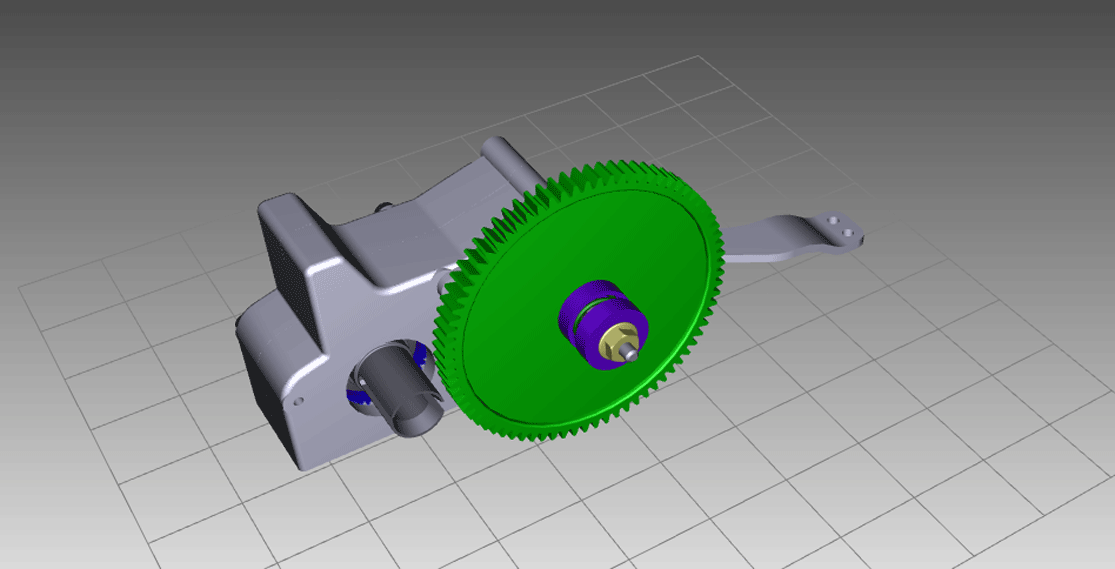
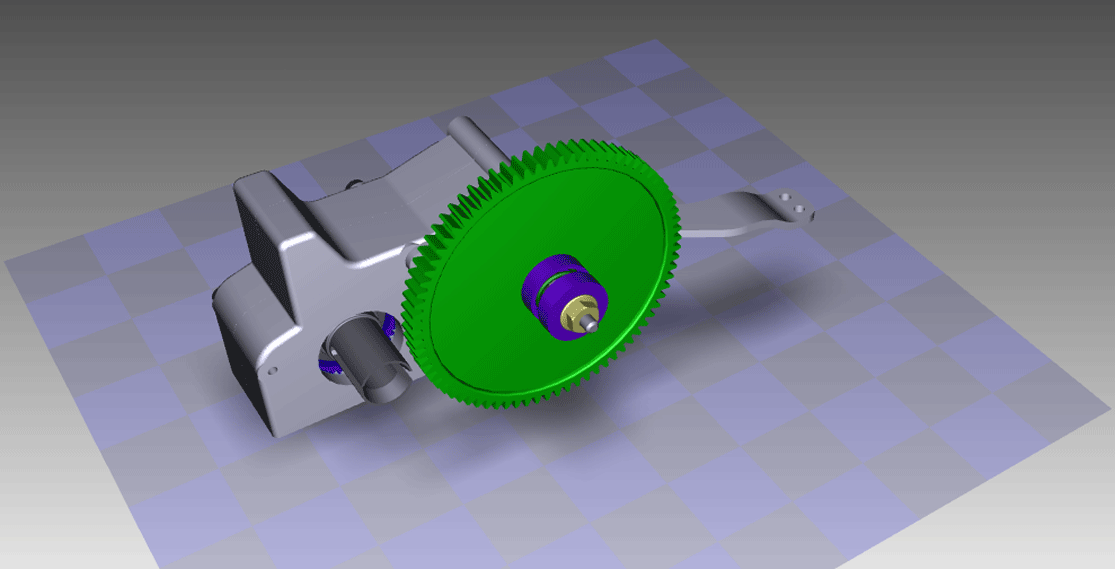
You can display a grid in 3D scenes and transparent 2D images to assist with the placement of objects and images and making them easier to distinguish. When displayed in scenes, grids can be thought of as the “floor”. This can be helpful in creating a sense of model scale, model position, and world orientation. It can be useful for marketing presentations by giving products a place in the world.
You can choose the size of the units that the grid displays. For example, a 1 by 1 unit grid or a 5 by 5 unit grid. The grid cells can be either solid or transparent.
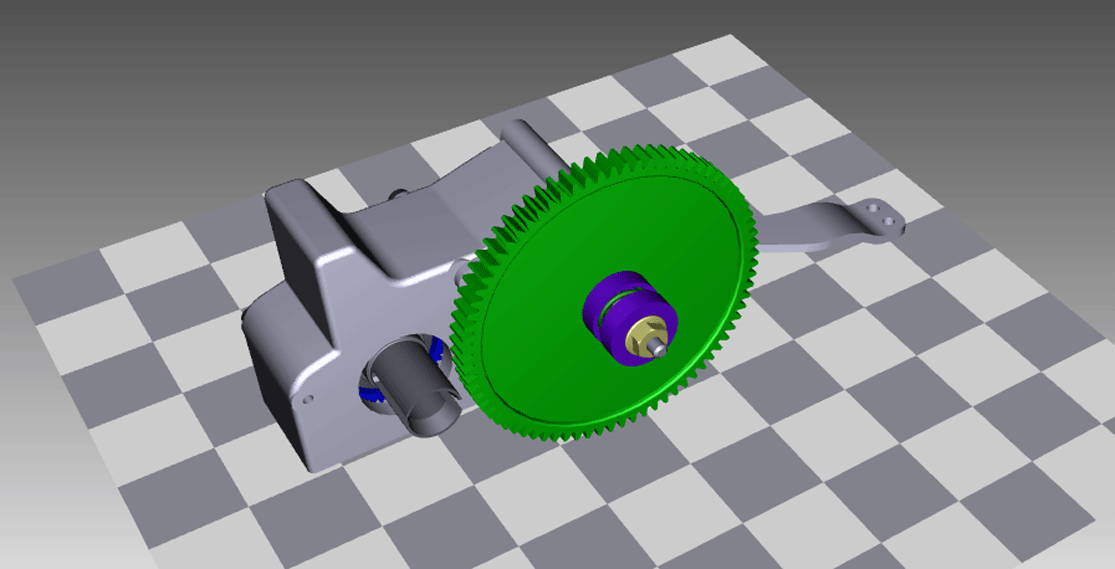
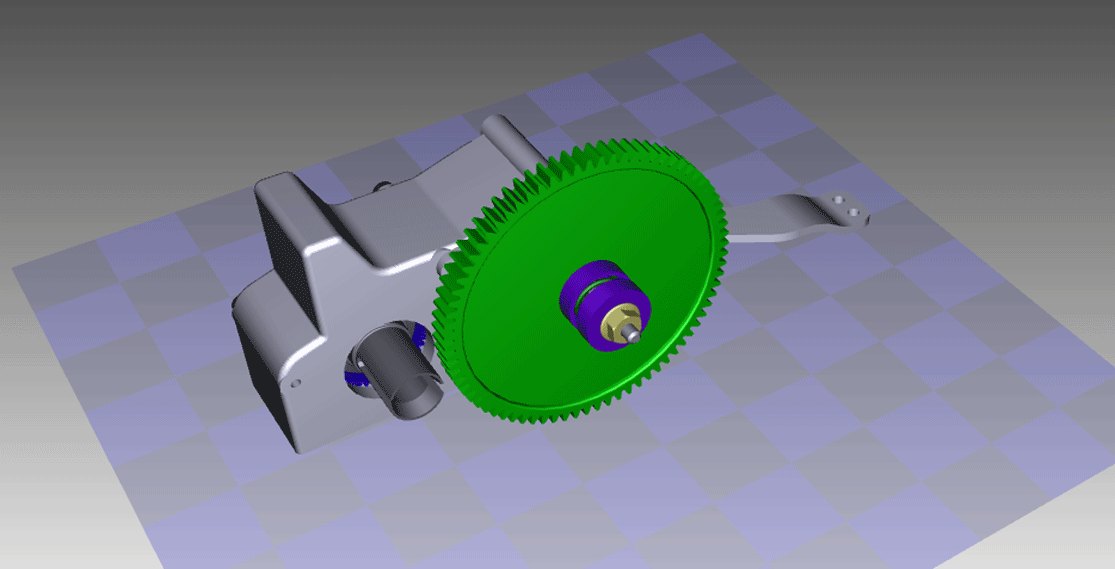
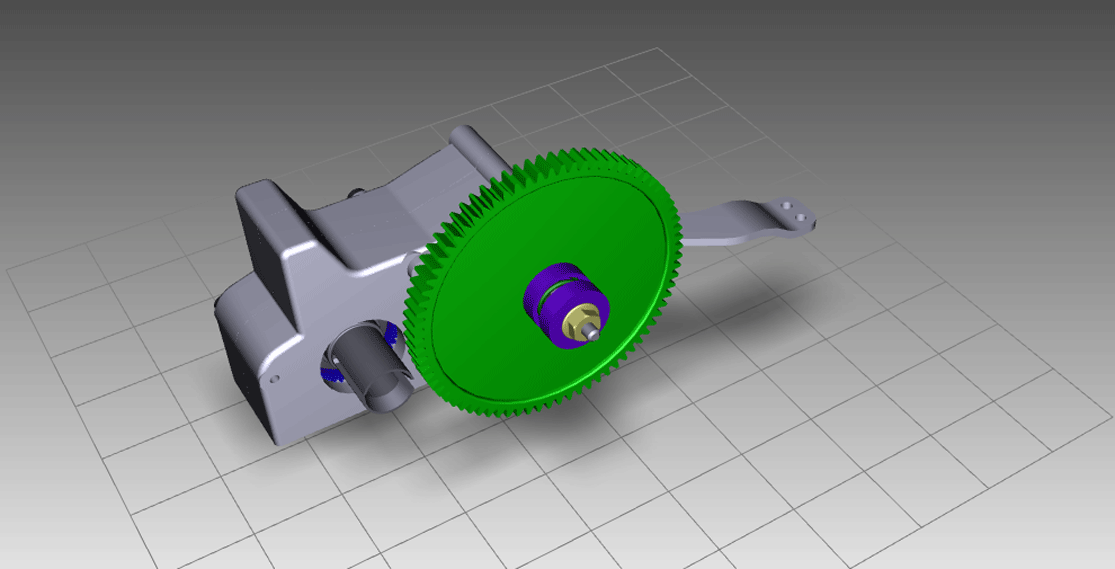
In scenes, you can also display a shadow that is projected from the model onto the grid.
The shadow’s display properties can be modified including the shadow’s resolution, edge blur, double-sided qualities, and opacity. The colors of the shadow and grid and also of transparent images can also be modified as required.
Activities
Displaying the Grid in a Scene
-
In the Navigation toolbar, select
 Display
  Grid and Shadow
 and do one of the following:
-
Click Wire Grid to display a wireframe grid
-
Click Solid Grid to display a solid grid
-
Click Transparent Grid to display a transparent grid
-
-
Select the size of the grid you require from the Display menu.
Displaying the Grid in a Transparent Image
-
Choose
Edit Preferences from the menu bar. -
Click the 2D View tab and do one or more of the following in the Transparency Settings area:
-
Select the size and color of the grid.
-
Use the color selector to select the required colors to apply to the alternating grid squares.
-
-
Click OK.
Hiding the Grid in a Scene
From the Navigation toolbar, select Display Grid and Shadow, and then click No Grid.
Displaying and Hiding the Scene Shadow in a Scene
From the Navigation toolbar, select Display Grid and Shadow, and then click Shadow. If the shadow was displayed, it is now hidden. If it was hidden, it is now displayed.