Realight Tool
Use
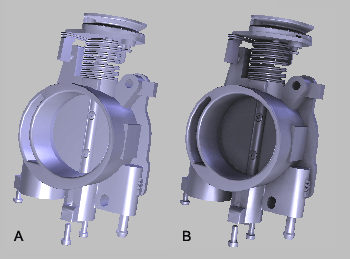
You can use the Realight tool to simulate global illumination utilizing the ambient occlusion technique, to render models as if they are surrounded by a dome of light. The tool simulates self-shadowing and makes models appear more realistic, and is especially useful for rendering models that lack texture, lighting, and bump, etc. For example, CAD models.
Ambient occlusion is a lighting technique that looks at many points on the surface of a model and estimates the occlusion of each point by the objects around it. That is, how accessible the point is to the ambient light. For example, a point on an exterior surface is more accessible that a point in a crevice, therefore it will receive more light. As the point in the crevice is less accessible, the shading becomes darker.
You can choose to store the ambient occlusion as vertex colors or as texture maps. Vertex color storage can be helpful for high density polygon models, whereas it is better to store illumination as texture maps for models with smooth surfaces and low polygon density. Any illumination that is stored as texture maps can only be applied to objects that have UV mapping.
Additionally, both vertex colors and texture maps can be used to store the illumination.
If you use the texture maps storage option, you can reduce the incidence of artifacts by increasing the size of the maps, or by increasing the Prefilter, Noise, and Blur values. You can also decrease artifacting by rendering using vertex colors, although this can increase rendering time.
Activities
Performing Realight Mapping
Open a 3D file that has been UV mapped and choose  on the Realight toolbar.