Distribution by Type and Dependency - Scenario 2
Use
This example illustrates the use of distribution rules with device binding with search criteria using constant values. It uses the same scenario as the example used in Distribution by Type and Dependency.
In this case however, the RMM customizing group contains the device attribute CENTERTYPE (data element CHAR10) which can have the value SERVICE or SALES. Since the ORDERTYPE attribute is a CHAR1 data element that can have the value P or S, and the CENTERTYPE is a CHAR10 attribute, these two attributes must be mapped using two rules with constant values.
Data Model and Distribution Logic
The following figure illustrates the data model and distribution logic to be created:
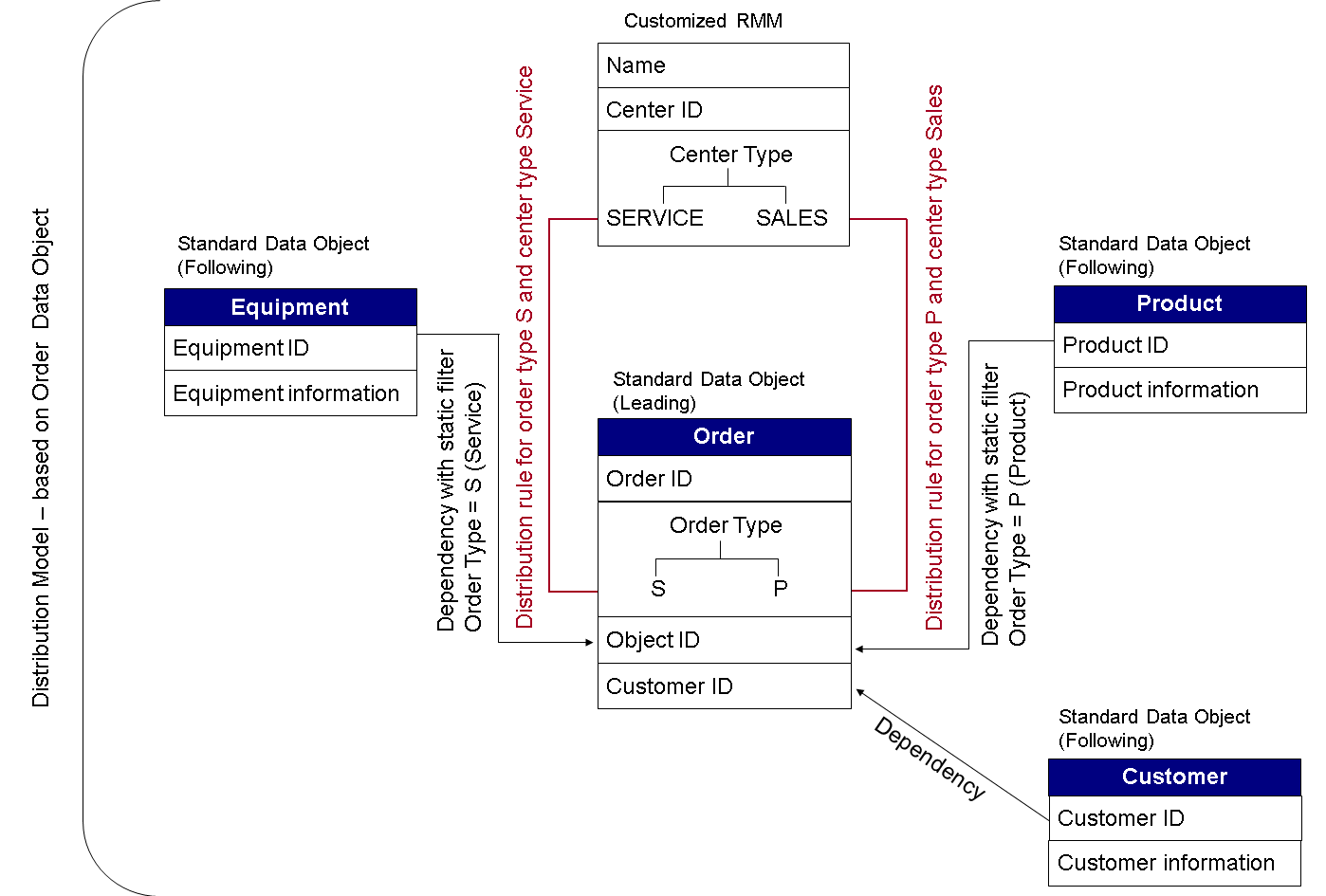
Data and Distribution Logic Modeling
You model this scenario as follows:
-
You follow steps 1 through 4 of the example, Distribution by Type and Dependency .
-
You create a distribution rule for the Order data object, using the following values:
-
Rule Details
Field
Action
Rule Name
Enter a name of your choice.
Description
Enter a description of your choice.
Data Object Name
No action. Displays the data object for which the distribution model was created, for example ORDER.
-
Rule Fields
Field
Action
Node
Choose the node that contains the order type attribute.
Node Attribute
Select the attribute that holds the order type and click >.
Operator
Choose EQ for the Equals operator.
-
Logic Selection
Field
Action
Subgen Mapping, Device Attribute Mapping, None
Choose None .
SubGen Data Object, Device Attribute, Constant Value, Date Pattern
Choose Constant Value .
Value Low
Enter S for service order.
-
Device Binding
Field
Action
None, All, Device Binding
Choose Device Binding .
SubGen Data Object, Search Criteria
Choose Search Criteria .
Device Binding Name
Enter a name of your choice, for example SERVICE.
Receiver Category Type
Choose MOBILE
Choose Fetch Attributes .
Field
Action
Attribute
Choose the attribute you have defined in the RMM customizing group, for example CENTERTYPE, and choose >.
Operator
Choose EQ.
Value Low
Enter SERVICE for a service center.
-
You confirm the following steps with Continue and complete the rule.
-
You repeat the rule creation process with another rule for the sales orders and sales centers:
-
Under Logic Selection: Value Low, you enter P for sales orders.
-
Under Device Binding: Value Low, you enter SALES for sales center.
-
-
-
-
-
-