 Maintaining Restricted Interchangeable Parts
Use
You maintain all restricted interchangeable parts for a part. The interchangeability code defines the restrictions and conditions of interchangeability. Restricted interchangeability functions are available for all processes that support MPN.
You may want the restricted interchangeability of two parts to apply to all other parts in the same FFF class. You control this using the indicator
Restricted Interchangeability Only Between FFF Classes
in the manufacturer part profile.
 Example
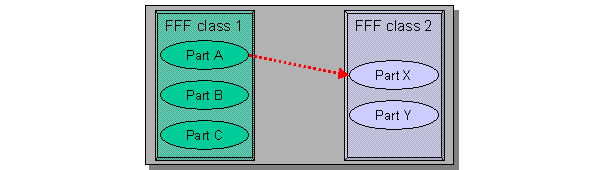
You consider two FFF classes with their elements and maintain the interchangeability relationship:
Part
A
has restricted interchangeability with part
X
.
Subject to the indicator
Restricted Interchangeability Only Between FFF Classes
in the manufacturer part profile of the respective FFF class, the following combinations are stored in the database:
Indicator not set in both FFF classes: Part A has restricted interchangeability with part X .

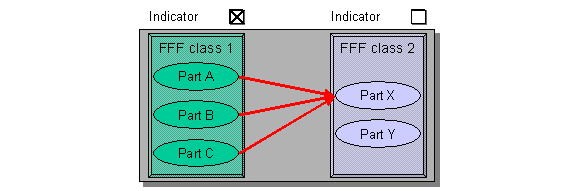
Indicator set in the FFF class of part A : The restricted interchangeability of part A is extended to parts B , and C in the FFF class.
Indicator set in the FFF class of part X : The restricted interchangeability of part X is extended to part Y in the FFF class.

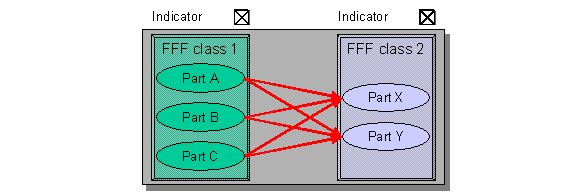
Indicator set in both FFF classes: The restricted interchangeability is extended to all possible combinations.
 Note
NoteYou can display a graphical overview of all parts that are fully and restricted interchangeable. For more information, see Graphical Display of all Interchangeability Relationships .
End of the note.
Prerequisites
You have assigned all parts that should be considered during restricted interchangeability maintenance to a manufacturer part profile. You carry out this assignment indirectly in an FFF class or directly as an entry in the material master.
In Customizing, you have maintained the interchangeability codes that determine the possible types of interchangeability relationships.
You should include authorization object ADPIC_RIC in the user profile if you want to be able to select the restricted interchangeable material.
Procedure
Maintaining One-Way or Restricted Interchangeability
From the SAP Easy Access menu, choose

Logistics

Central Functions
Engineering
Interchangeability of Parts
Maintain
 .
.
On the selection screen, enter a material and choose
Goto
Restricted Interchangeability
.
If conversion-exit is activated, you can enter the SAP material number or the manufacturer part number (MPN). The system converts your entry into the MPN and adds the external manufacturer to it.
NoteIf you enter a part that has no setting for interchangeability in its manufacturer part profile , the system displays a warning. You can still maintain the restricted or one-way interchangeable parts, but you will not be able to use them.
End of the note.Choose
Edit
New Entries
.
Enter the interchangeable parts with their interchangeability codes, and, if required, an FFF class.
Save your entries.
Assigning Documents
You can assign a document to every interchangeability relationship to explain the reasons and conditions of interchangeability. The document management system must recognize this document, which may be a technical drawing, graphic, or text.
Select an entry.
Choose
Goto
Documents
Maintain Documents
.
Enter the document info record.
For more information about creating documents, see
Creating a Document
in the
CA Document Management
documentation.
Creating Descriptions
You can assign a long text to an interchangeability relationship.
Select an entry.
Choose

Long Text
.Enter a language code.
Enter and save the text.