 Maintaining Fully Interchangeable Parts
Use
You group inventory-managed manufacturer parts that are fully interchangeable with each other in a common class of interchangeable parts ‑ a Form-Fit-Function Class (FFF Class).
Prerequisites
Making Global Settings

If you are setting the
Manufacturer Part Number
indicator for the first time, activate theMPNandBMAindicators for theMARA-BMATNfield to avoid performance loss.
To use manufacturer part numbers, you have to set the
Manufacturer Part Number
indicator. To set the indicator, in Customizing choose
Logistics ‑ General
→
Material Master
→
Basic Settings
→
Make Global Settings
Defining a Manufacturer Part Profile
A
manufacturer part profile
can be relevant to either only inventory-managed parts or only non-inventory-managed manufacturer parts. You define this in the profile attributes using the
IM Manufacturer Part
indicator
.
You define the manufacturer part profile in Customizing for
Purchasing
under
Material Master
→
Define Manufacturer Part Profile
.
Creating Master Records for Manufacturers
You have created individual master records for the
manufacturers of interchangeable parts, and entered the
external manufacturer
name in the
External Manufacturer
field in the control data of the vendor master. The system uses the external manufacturer together with the manufacturer part number (MPN) to uniquely identify an inventory-managed manufacturer part.
If the manufacturer is not also the vendor, you create the manufacturer as a vendor with a limited vendor master record. You can use account group MNFR.
If the manufacturer can
alsobe the vendor, you create a full vendor master record. You create this vendor master record with an account group assigned to a partner schema that takes account of the partner role
HS. (In Customizing for
Purchasing
choose
Partner Determination
→
Partner Settings in Vendor Master Record
to define the partner schemas and assign them to account groups .)
For more information about maintaining vendor master records, see Maintaining Vendor Master Records .
Procedure
Maintaining Full Interchangeability of Parts
From the SAP Easy Access menu, choose
Logistics
→
Central Functions
→
Engineering
→
Interchangeability of Parts
→
Maintain
.
If you want to assign parts in an FFF class, enter the
FFF Class
on the selection screen and choose
Goto
→
Full Interchangeability
.
If you enter an FFF class that does not exist, the system calls material master maintenance to allow you to create the new FFF class. In such a case, you create
one
material master record with material type
FFFC Form-Fit-Function-Class
. In the
Basic Data
view, you assign the part to a
manufacturer part profile
, which defines the basic attributes of the interchangeable manufacturer parts in this FFF class.

On the selection screen, you can also enter a part in the
Material
field. If the part is already assigned to an FFF class, the system display this part in the group box at the bottom along with all the parts that are interchangeable with it.
If a conversion exit is activated, you can either enter the SAP material number or the MPN. The system converts your entry into the MPN and adds the external manufacturer to it.
The system displays all the interchangeable parts that are already grouped in this FFF class in the group box at the bottom.
In the group box at the bottom, enter the parts that should be assigned to the entered FFF class, or the parts that should be interchangeable with the entered part.
If you enter a part that does not exist, the system calls material master maintenance to allow you to create the part. In such a case, you create a material master record with material type
HERB Interchangeable Part
. In the
Basic Data
view, you maintain the following:
Manufacturer part number (MPN) used in the manufacturer’s parts catalog.
Some of the fields in the material master data for the parts that are grouped in an FFF class have to be identical. For example, the base unit of quantity must be identical to allow the correct comparison of substitute stock.
When you assign parts to an FFF class, the system checks the consistency of the data entered in these fields. You can use a report to copy the common fields from a reference part to all other parts. For more information about consistency checks and copying of material master data, see Data Consistency in Material Master Maintenance .
4. Save your entries.
The system assigns the new parts to the FFF class of the part that you entered.
What happens if you enter parts that are already assigned to another FFF class or MPN-MRP set?
You have entered partA. If you now want to maintain partX, which belongs to a different FFF class, as interchangeable with partA
If partXis the only part in its FFF class, the system enquires whether you want to assign part X to the FFF class of partA. On confirmation, the system assigns it to the FFF class and sets a deletion indicator on the original FFF class of partX
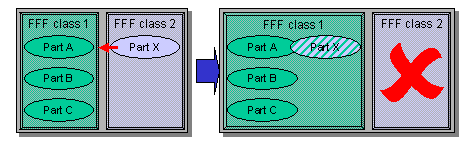
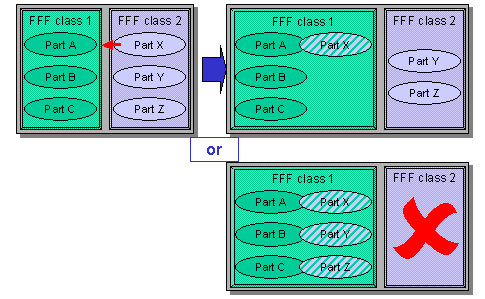
● If partXis not the only part in its FFF class, the system asks whether
You want to move only partXto the FFF class of partA, or
You want to move all parts in the FFF class of partXto the FFF class of partA, and set a deletion indicator for the FFF class of partX(
Extend to FFF Class
).
● If you work with MPN-MRP sets and partXtogether belongs with other parts to an MPN-MRP set, the system ensures that the total MPN-MRP set changes its FFF class. The system asks whether
You want to move all the parts in the MPN-MRP set of partXas well as the MPN-MRP set to the FFF class of partA(
Extend to MPN-MRP Set
), or
You want to move all the parts in the FFF class of partXincluding their MPN-MRP sets to the FFF class of partA, and set a deletion indicator for the FFF class of partX(
Extend to FFF Class
).
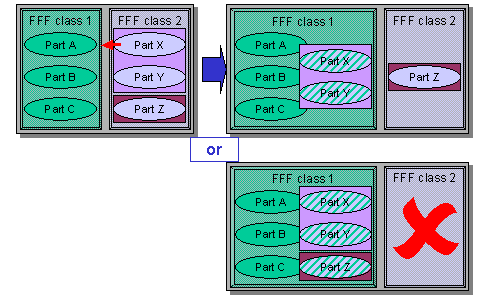

If you want to move only partX, you have to remove it from the MPN-MRP set. For more information, see Creating and Changing MPN-MRP Sets .
MPN-MRP sets can overlap in different plants. If you use
Extend to MPN-MRP Set
, you may include parts into the full interchangeability that belong to other MPN-MRP sets (in other plants). In such a case, the system provides the
Extend to MPN-MRP Set
function again.
It is not possible to merge two FFF classes if they each contain MPN-MRP sets that have the same name.
Deleting Full Interchangeability of Parts
If you no longer want some parts to be fully interchangeable with others in the same FFF class, you select the parts to be deleted in the list of fully interchangeable parts and choose
Edit
→
Delete Line
.
MPN-MRP Sets
If the part that you want to delete belongs to an MPN-MRP set in the FFF class, you have to remove the whole MPN-MRP set from the interchangeability. The system helps you by asking the relevant questions.
If the part that you want to delete from full interchangeability belongs to different MPN-MRP sets in different plants in the FFF class, you have to remove all the MPN-MRP sets from the interchangeability. The system helps you by asking the relevant questions.