Data Evaluation Based on Machine Learning
Here, one-step master data maintenance and two-step master data maintenance can be selected. In the one-step master data maintenance, all materials that are to be used for the analysis must be selected. After you choose the MD Recommendation (ML) button, the system asks you whether you want to execute automatic master data maintenance. You can execute this directly or display the changes that have been made. After selecting two-step master data maintenance, the system asks you whether you want to execute the master data evaluation. If so, a new window opens in which various extended functions are available for evaluation.

After the machine learning analysis has been performed, a window opens displaying the material list and highlighting any potential errors in red.
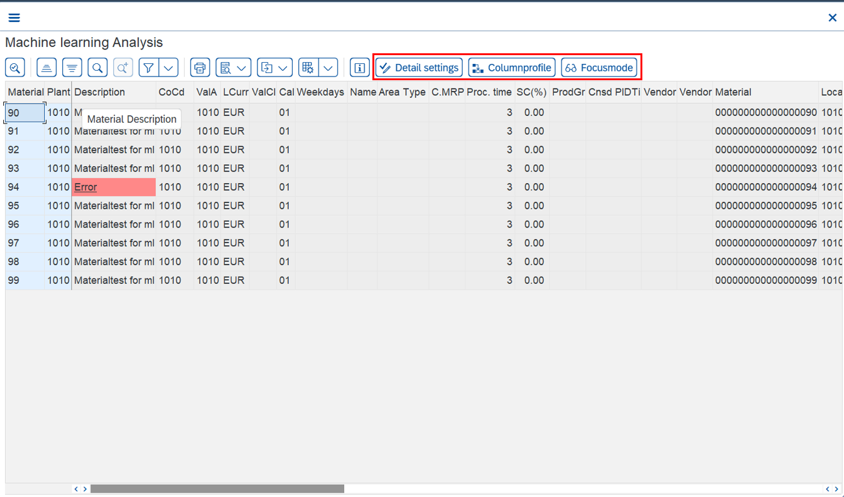
All columns created in the column profile are used for the analysis. Errors highlighted in red can be selected and indicate possible alternative solutions.
You can use the Column Profile button to view the column profiles. A new column profile can be selected there, or you can choose another button to navigate there to transaction /SAPLOM/XMM_FIELDPRF, where a new column profile can be created or an existing one can be changed. These can also be applied immediately without having to restart the MRP monitor.
The Focus Mode button lists all errors in a table view, and another dropdown field lists all possible solutions by probability, and a new value for the error can be selected. By default, the most probable alternative is preselected, but this can be changed manually. The checkbox at the beginning of each row (activated by default) allows you to exclude a row from master data maintenance. After you choose the Apply Selection button, master data maintenance is performed automatically for all rows with activated checkboxes and new values, and the new values are maintained. If you want to use the new values in the MRP monitor, you must restart the MRP monitor to transfer these values.
The Detailed Settings button displays additional buttons that enable you to make various settings with regard to the evaluation of the algorithm.

When you choose the Rules button, all association rules that the algorithm uses for evaluation are displayed. Individual rules can be excluded from the evaluation by deselecting the relevant checkbox. The table is to be read as follows: If the premise is found in a row of the material list, the conclusion follows with a certain probability, the confidence. All parts of a rule occur with a certain frequency in the data record, the support. Support and confidence are also explained again under the Explanation of Rules button.
You can use the Parameters button to change various parameters of the algorithm. A permitted minimum and a maximum value is specified. The individual parameters are clickable and a dialog box explains their meaning.
The Column Selection function allows you to change the column profile for the current view, and to add or remove columns. You cannot select more than 10 columns at a time.
The button to the right of Column Selection is a filter, which moves up all rows that contain a potential error.
You can use the Troubleshooting dropdown menu to specify how many errors to search for. This means that the system searches for and selects the selected number of most probable errors.