Results Display
After you have made the relevant settings on the selection screen and executed the stock level monitor, the results of the analysis are displayed in the form of a table or a log.
If you have activated the test mode on the selection screen, the parameters are not updated automatically in the enhanced material master view. If the test mode is deactivated, the determined stocking indicators and key figures are updated in the enhanced material master view.
If errors occur when you save the data, a message appears in the status bar. Warnings and errors are also recorded in the application log (transaction SLG1, object /SAPLOM/X).
In the result list, separate columns with the determined information are displayed for each selected analysis type. You can use the layout function to show or hide relevant columns.
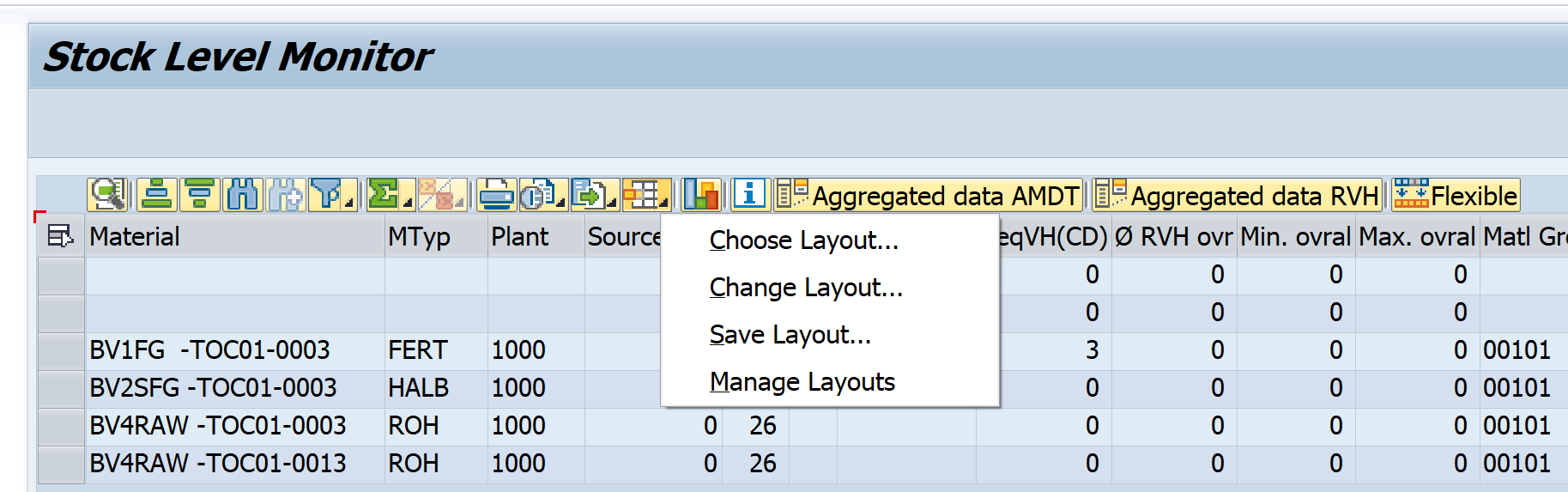
To determine the stocking indicators and the production/procurement principle, the following information is available in the result list, depending on the selection made:
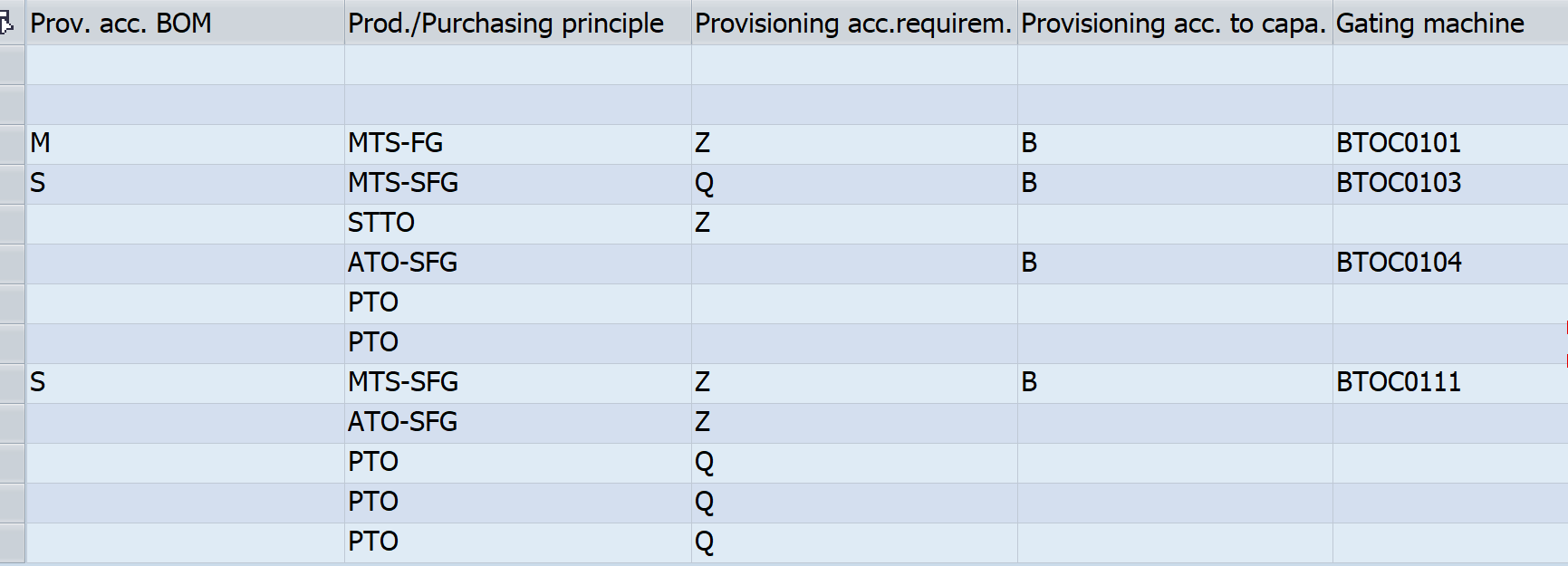
The input sizes used for determination are also each displayed in a separate column:
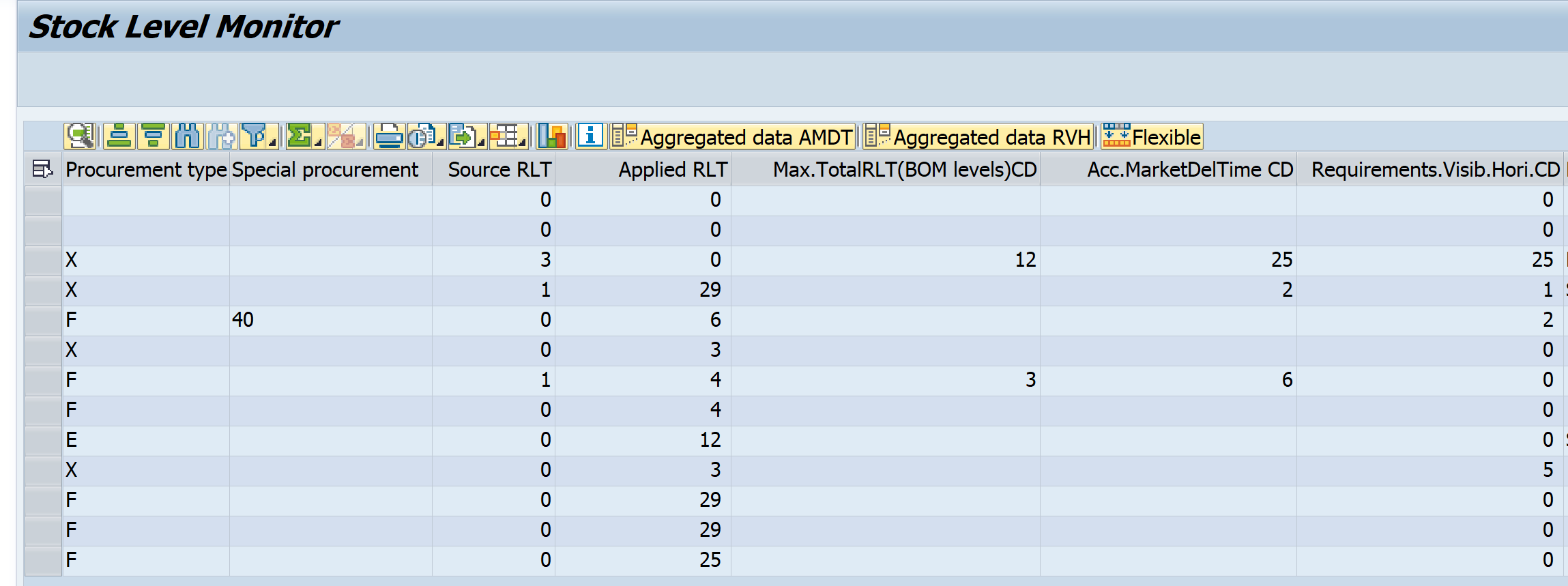
Depending on the selection made, the following information is available in the result list for the BOM analysis:

In addition to the parameters relevant for analysis, other material master data is also displayed in the result list, provided you have made the corresponding selection on the selection screen.
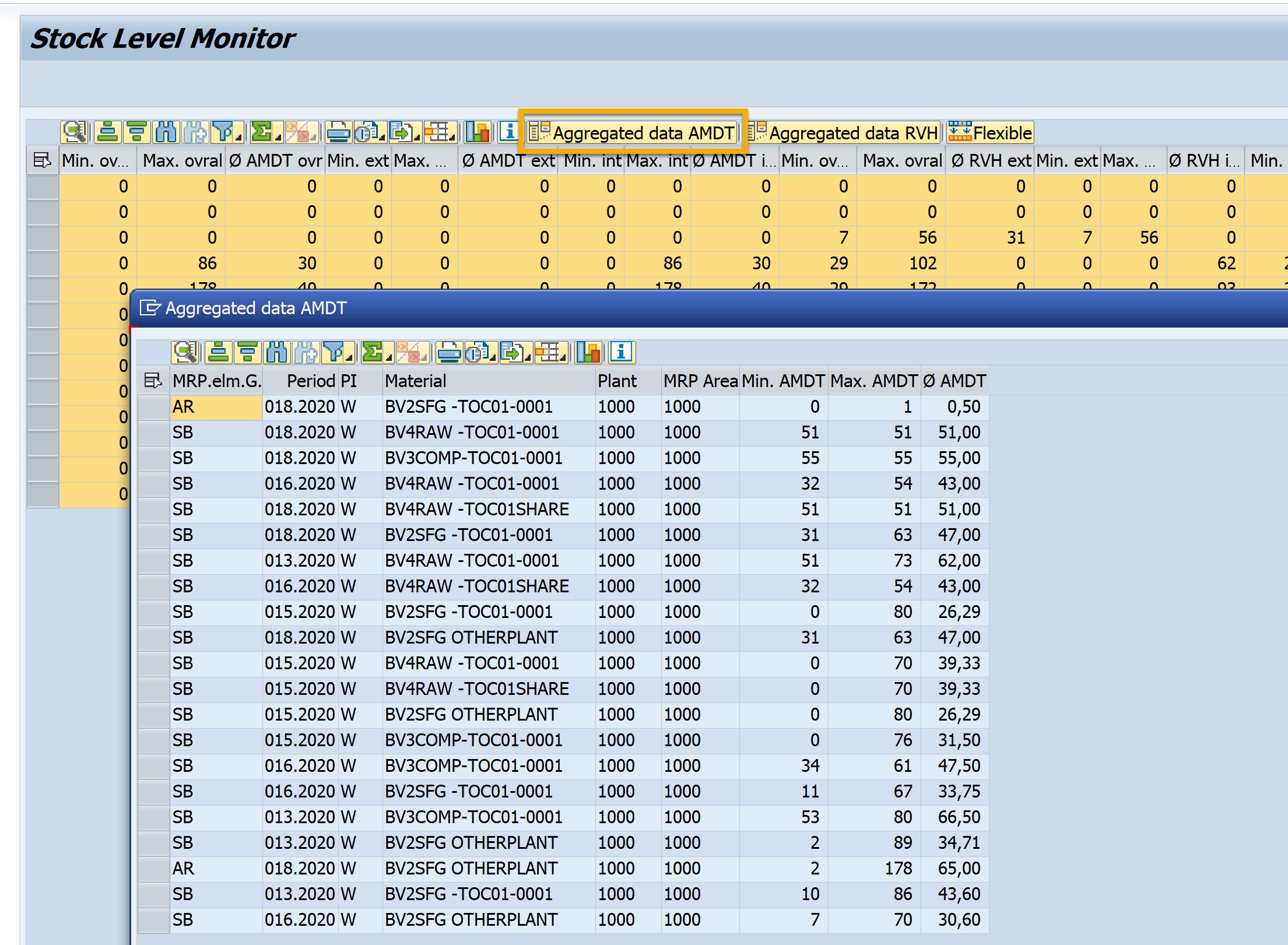
Key figures for the determined (accepted) market delivery time and for the demand visibility horizon are also available in additional columns.

If you select a row and choose the pushbutton Aggregated Data AMDT or Aggregated Data RVH, the data at material-plant MRP area level is displayed clearly in a popup.

You can use the Flexible pushbutton to execute a flexible update of the material master from the result screen. For more information on the flexible master material update, see the user documentation of the comprehensive functions at Flexible Material Master Update.