Selection
You call the stock level monitor using transaction /SAPLOM/SLM. Alternatively, you can start the monitor in transactions SE38, SA38, and SE80 using the report name /SAPLOM/SLM_PROVISIONING.
The selection screen is divided into several tabs:
On the Material Selection tab, you can restrict the analysis area. You can make a selection using material-specific characteristics such as material number, material type, material group, and so on. Plant-specific parameters are also available for the selection. These are located in the Plant Data for Material area. By choosing the Additional Material Parameters pushbutton, you can select the materials to be analyzed using parameters from the enhanced material master view.
In the Restrict Material Selection section, you define whether all materials available in the selection or only header materials at BOM level 0 are to be exploded for the determination of the stocking level and the determination of the BOM key figures. If the option Explode all selected materials is selected, note that both accepted market delivery time = 0 and maximum total replenishment lead time = 0 are to be handled as infinite (9999) on the Stocking Indicator tab, otherwise each component would be stocked.
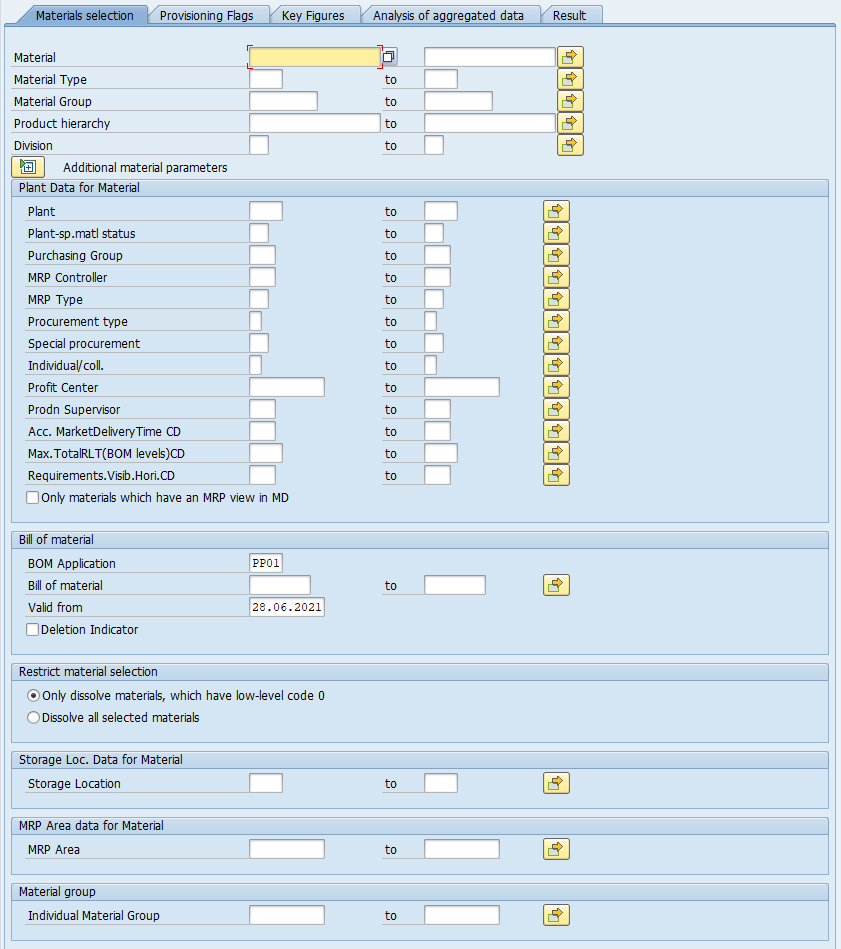
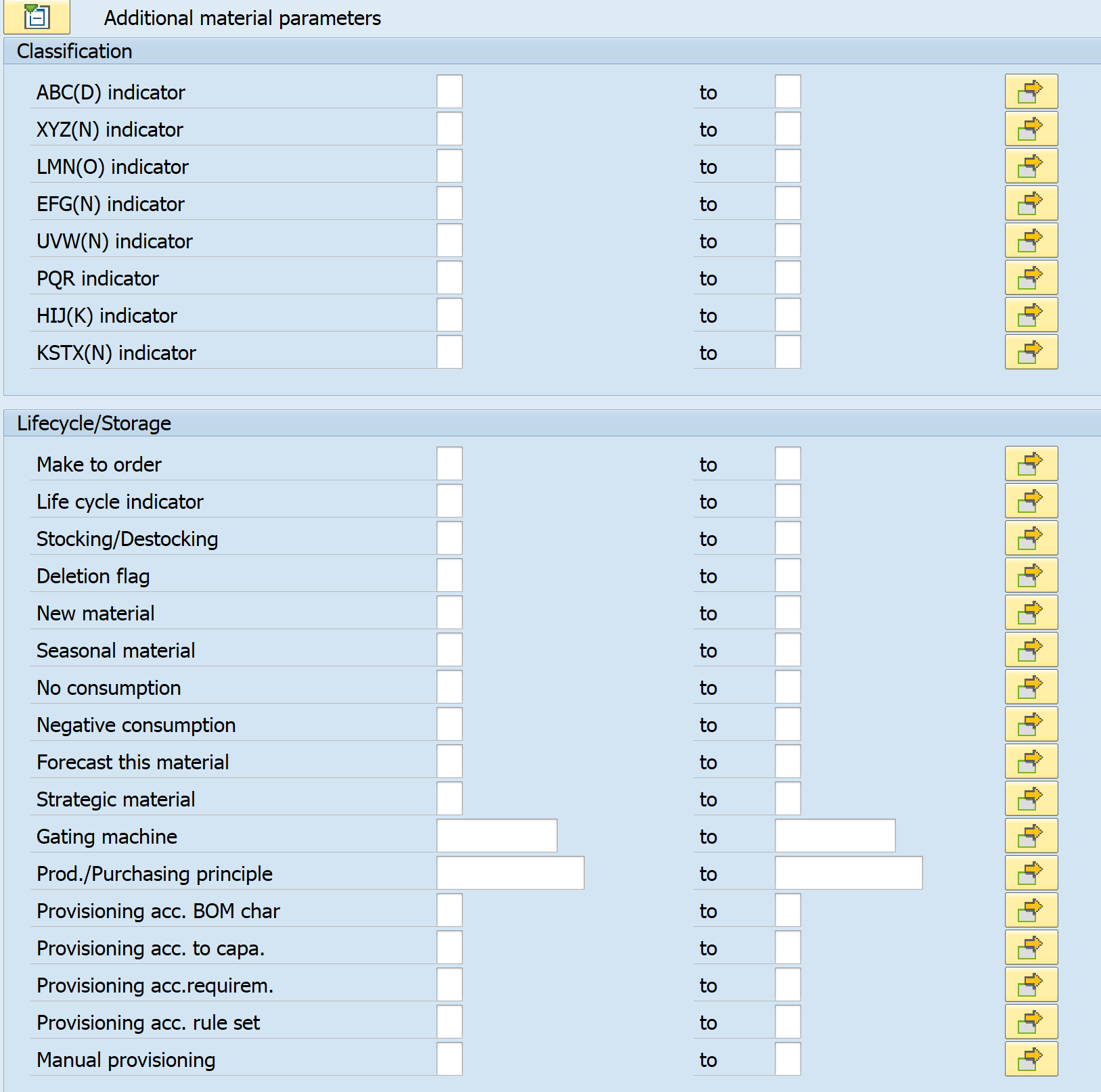
You can also make a selection based on BOM characteristics, storage location data, MRP area data, or the individual material group.
For more information about the individual material group, see Individual Material Groups.
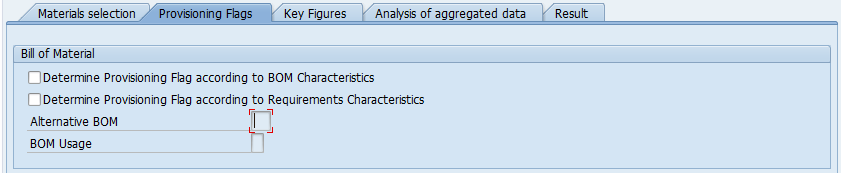
On the Stocking Indicator tab, you select which indicators are to be determined. In the first block, you can activate stocking indicators according to BOM characteristics and requirements characteristics.
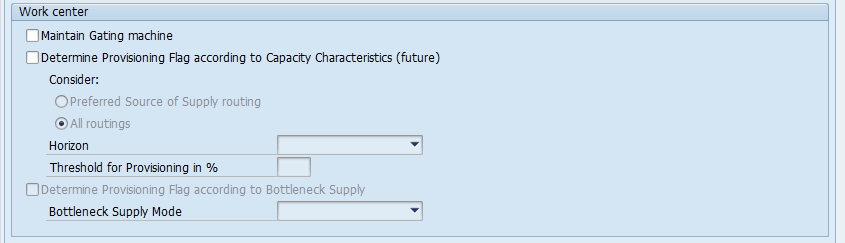
In the next block, stocking indicators can be determined according to capacity characteristics or bottleneck supply, and the gating machine can be maintained. To use this analysis, you must also use the consulting solution capacity requirements planning cockpit (CRP) and perform an analysis in advance, as well as fill the table /SAPLOM/CEH_CR01 with the relevant data.
You can use a checkbox to select whether the stocking indicator is to be determined according to future capacity characteristics. If you select this option, use dropdown to determine which time horizon is taken into account. You also define a percentage reference value for the stocking. In addition, you use dropdown to determine whether only assigned components or all preceding components are to be taken into account. You can also maintain the gating machine.
For more information on CRP, see the associated Customizing documentation https://help.sap.com/viewer/p/SCMCSCRP.
For more information on CRP, see the associated Customizing documentation https://help.sap.com/docs/SCMCSCRP.
In the Restrictions block, you can select the two indicators No Stocking and Mandatory Stocking. In the enhanced material master view, you can set whether each individual material should never be stocked or whether it should always be kept in stock. The selection as to whether these indicators are to be taken into account in the program can be made individually for each analysis.

The objective of the sourcing risk analysis is to mitigate the sourcing risk. A risk assessment is performed for each material using a profile maintained in Customizing transaction /SAPLOM/SLM_C.

The multilevel propagation analysis facilitates the propagation of information from top to bottom through the BOM. You can use the profile to set the required information. To do this, call transaction /SAPLOM/SLM_PP.

The last block on the tab contains options that affect the interpretation of certain data. Using the settings for the stocking level, you define whether you want to make an individual stocking decision at part level or whether you want to make a collective stocking decision at BOM level.

In the section Material Movements, select the option to analyze the active usages and the parameters for the analysis. The setting MDH profile helps to restrict the movement types considered in the calculation based on the settings for the profile that can be created using the transaction /SAPLOM/MDH_CUST. The other two parameters allow you to select the period assignment: Entry date, Posting date, Document date and the period of analysis wanted. The additional settings can exclude the canceled orders from the calculation and consider the material itself in the analysis. In some cases, a material movement contains the header material again as “using” material number (e.g. in certain scenarios related to project-related activities, …). In those cases, it needs to be decided whether it should be counted in the usage evaluation or not. With this flag, you can decide whether this usage of the material itself should increase the number of usages or whether it should be excluded from the evaluation.
In the section BOM, specify the parameters that are relevant for the BOM . The settings you make here do not affect the determination of the stocking indicator, the determination of the production/procurement principle and the active usages. You can use a date to first select BOMs based on their validity. In addition, you can use a checkbox to select only BOMs that exist in active production versions for the BOM analysis. You also define whether alternative BOMs are also to be counted. Other selection options are BOM usage and BOM status. The BOM analysis is currently only supported for BOM category 'M' - material BOM.
In the section Options, you can define whether the explosion is to be performed at one or multiple levels. This option is affecting the BOM Usage and Active Usage analyses.

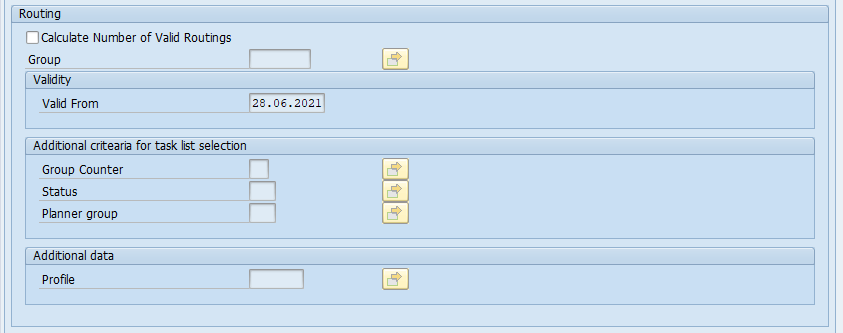
In the Routing section, you define the settings for calculating the number of valid routings. If this option is selected, an additional key figure is displayed on the results screen. You can use additional selection criteria, such as validity period, group counter, planning status, planner group, and the profile for processing routings to define which routings are to be taken into account for the calculation.
In the section Production Version, you specify whether the number of valid production versions for the selected materials is to be calculated and displayed as an additional key figure on the results screen.

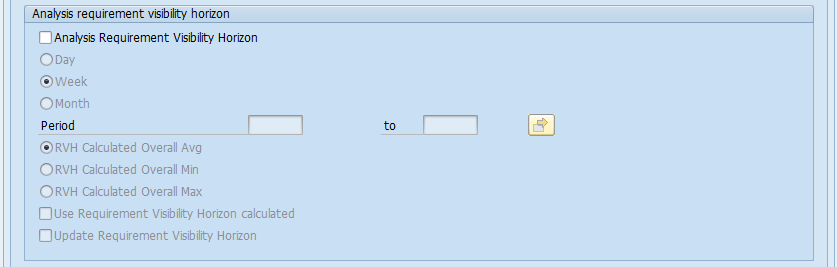
On the Analysis of Aggregated Data tab, you can calculate the accepted market delivery time and the demand visibility horizon, and use this to determine the stocking indicator. The values determined can also be stored in the enhanced material master view. To be able to determine and use these key figures, you must have made the relevant settings for the XMD tool and have executed the corresponding XMD jobs in advance. For more information, see the configuration of the comprehensive functions at Stock/Requirements List.

On the Result tab, you first define the SLM execution and output mode. You can run the execution in test mode without updating parameters in the material master. If the consulting solution is not executed in test mode, the parameters determined, such as a stocking indicator, are saved directly to the corresponding fields in the enhanced material master. The application log or a table is available for results output. There is the option to display the result also as a graphical representation so that the result for provisioning flags to be easier to interpret. This option can be used when the result screen is displayed as table.
In addition to the display, you can also save the result. This can also be loaded and displayed in a later SLM run. Results that are no longer used can be deleted from the database.
In the Output Control block, you can make settings for the Layout, Layout Set, and Layout Group Profile. If the user stores an Action Profile, actions can be defined before and after execution. As a result, the SLM can be integrated into a business process. The rule book ID comes from the default system and can also be specified here.
