Adding Actions Dynamically
You can add actions to the admin studio dynamically, when your work unit starts to run.
For example, a work unit for editing a page may enable the administrator to select iViews to add to the page. The work unit can add an action Add iView to Page for all iViews, which triggers a Web Dynpro action that adds the iView to the page, as illustrated in the following figure:
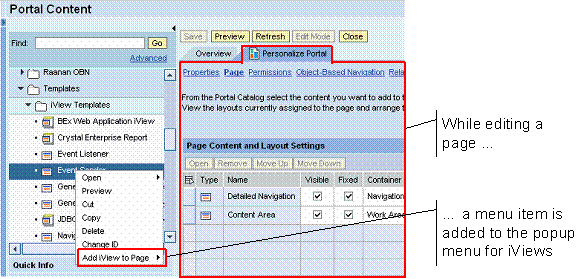
-
Create and map the following context attributes
-
Component Controller -- IActionNodeList ( java.util.List ): List of dynamic actions
-
Tab View -- IActionNodeList ( java.util.List ): List of dynamic actions. Map this attribute to the IActionNodeList attribute in the component controller.
-
-
Create the Web Dynpro actions for the corresponding admin studio actions.
For each Web Dynpro action, add a parameter called eventData of type com.sap.portal.service.EventData to get information about the portal object for which action was triggered.
You can get the following strings by calling the eventData.getString() method:
Key
Value
ResourceID
The ID of the object selected.
DisplayName
The name of the object selected
IsWebdynproObject
Indicates that the selected portal object is Web Dynpro- based.
-
In the wdDoInit() method of the work unit view, add code that specifies the admin studio actions to add and the Web Dynpro actions to be triggered when each admin studio action is selected.
The following illustrates how to add an action dynamically:
//Create an (executable) action, specifying the ID, display name
// and Web Dynpro action to be triggered.
ExecutableActionNode action1 = newExecutableActionNode("action1ID", null,
    new WebDynproActionMetaData("action1ID", "Dynamic Action1
    Title",wdThis.wdGetCallMeActionAction()));

//Add the dynamic actions for this work unit to a List
List<IActionNode> actionList = new ArrayList<IActionNode>();
actionList.add(action1);

//Save the List to the context
wdContext.currentContextElement().setIActionNodeList(actionList);
See Action Filters and Submenus below for more options when creating actions.
-
In the component controller's getActions() method, get the List of actions in the context and return it as an array, as follows:
List<IActionNode> actions = wdContext.currentContextElement()
    .getIActionNodeList();
returnactions.toArray(newIActionNode[actions.size()]);
To set the actions while the work unit runs and not just at startup of the work unit, call setActions() , as follows:
List <IActionNode> actions = wdContext.currentContextElement() .getIActionNodeList(); wdThis.wdGetIWUFrameworkInterface().setActions( actions.toArray(newIActionNode[actions.size()]));NoteTo set the actions, you must declare the IWUFramework component interface controller as a required controller of the view.
Action Filters
You can create an action filter so that your action only appears for a subset of portal objects based on:
-
Object type
-
Permissions
-
Object capabilities
-
Aspects
The following code creates a filter so that an action is only displayed for iViews for which the current administrator has write permission, and then applies it to an action:
//Create an action filter
ActionFilteringData actionFilter = newActionFilteringData();
actionFilter.addValue(IActionConfig.ATTR_REQUIRED_OBJECT_CLASSES,
    "com.sapportals.portal.iview");
addIviewToPageFilter.addValue(IActionConfig.ATTR_REQUIRED_CAPABILITIES,
    "com.sapportals.portal.iview");
actionFilter.addValue(IActionConfig.ATTR_REQUIRED_PERMISSIONS,
    "admin_read_write");

//Create an (executable) action, specifying the ID, display name,
// Web Dynpro action to be triggered, and the action filter.
ExecutableActionNode action1 = newExecutableActionNode("action1ID", null,
    new WebDynproActionMetaData("action1ID", "Dynamic Action1 Title",
        wdThis.wdGetCallMeActionAction()),actionFilter);

//Add the dynamic actions for this work unit to a List
List<IActionNode> actionList = newArrayList<IActionNode>();
actionList.add(action1);

//Save the List to the context
wdContext.currentContextElement().setIActionNodeList(actionList);
Submenus
You can create a tree structure by creating folder action nodes, and then adding executable actions under the folder action nodes.
The following code creates an action called action1 , and places it in a folder action node called myActions :
//Create an (executable) action, specifying the ID, display name
// and Web Dynpro action to be triggered.
ExecutableActionNode action1 = new ExecutableActionNode("action1", null,
    new WebDynproActionMetaData("action1", "Dynamic Action1 Title",
        wdThis.wdGetCallMeActionAction()));

//Create a folder action, specifying the ID and display name
FolderActionNode myActions = newFolderActionNode(
    "MyActions",null,"My Actions");

//Add the executable action to the folder action
myActions.add(action1,null);


//Add only the folder action to a List
List<IActionNode> actionList = newArrayList<IActionNode>();
actionList.add(myActions);

//Save the List to the context
wdContext.currentContextElement().setIActionNodeList(actionList);