
 Selfmonitoring CCMS Agents
Monitor
Selfmonitoring CCMS Agents
Monitor

Use
Use this monitor to
monitor the SAP NetWeaver
Management Agents and
 CCMS Agents in
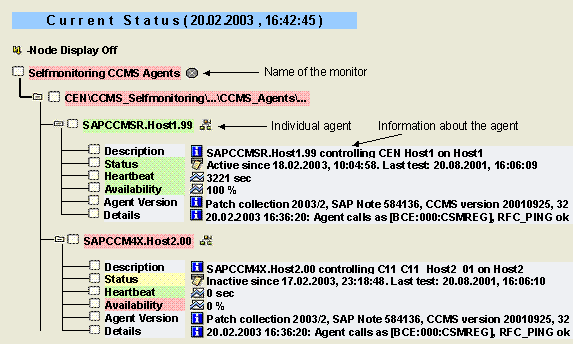
your IT landscape. The following information about the agents
appears:
CCMS Agents in
your IT landscape. The following information about the agents
appears:
● The host on which the agent was installed
● The application server that the agent is checking (for instance agents)
● How long the agent has been active or inactive, and when it was last checked
● The availability of the agent
Features
The following agents that are registered with the local system have at least one subtree of their own in this monitor:
● SAP NetWeaver Management Agents
● CCMS Agents
●
CCMSPING (but only
if the agent was registered with the option –push)
The name of the subtree is the same as the name for the logical Web service port responsible for the agent (in the case of CCMS agents, the RFC destination of the agent) and has the following structure:
<Type of agent>.<Name of host system>.<System number of monitored instance>
Each of these subtrees consists of the following monitoring tree elements (MTEs):
MTE Name |
Description |
Description |
Information about which application server on which host is monitored by the agent |
Status (CsmTaskCcmsAgent.Status) |
Information about whether the agent is active or inactive and how long it has been in that state |
Heartbeat (CsmTaskCcmsAgent.Heartbeat) |
Time since the last test of whether the agent is still active; if the agent is inactive, this attribute contains the value 0 sec |
Availability (CsmTaskCcmsAgent.Availability) |
Percentage of the time in which the agent is active (by default in the last 15 minutes; you can change the time period in the Properties of the MTE class) |
Agent Version (CsmTaskCcmsAgent.Version) |
Static information about the agent used: ● CCMS version ● systemid ● relno ● Patch text |
Details (CsmTaskCcmsAgent.Details) |
Information about the central monitoring system user to which the agent sends data and alerts as an RFC client; also the current status of the RFC connection used to do this |
Activities
To start the monitor, follow the procedure below:
...
1. Start the Alert Monitor using transaction RZ20 or choose CCMS → Control/Monitoring → Alert Monitor.
2. On the CCMS Monitor Sets screen, expand the SAP CCMS Technical Expert Monitor set.
3. Start the Selfmonitoring CCMS Agents monitor from the list by double-clicking it.