

 Adjusting Table Controls
Functions : |
Description: |
Restrictions : |
Transaction variants and screen variants |
You can:
|
You cannot change column headings. |
GuiXT |
The following commands are available: ColumnHeader [Old] "New" ColumnWidth [Heading] 0 hides an entire column.You can also reposition or hide the table control. |
None |
Administrator Function for Table Control Settings (see below) |
Adjusting tables at client level. You can:
|
You cannot revoke the ready for input status of individual columns. You cannot change column headings. |
You can adjust the layout of a table control at two levels:
User Level
The Table controls function in the upper right corner of the table control allows you to personalize the basic table settings delivered with the system. For more information, see
 Table Controls in the Getting Started documentation.
 Table control adjustments made at user level take priority over adjustments made at client level. Note the following exceptions:
The first two points are important, otherwise columns could be seen or changed by user groups that they should not be available to.
Client Level
There are two ways of how you can adjust the layout of a table control on a client-wide basis:
You use the administrator functions for table control settings if you want to make the following changes in one client only:
If you want to revoke the ready for input status of individual columns or preassign values to table control fields, you must create a screen variant since the administrator function for table controls does not support this. You should also use a screen variant for adjusting table controls if you want to copy the table control settings to other clients. Since screen variants can be transported, their corresponding table control layouts can be transported as well.
Administrator Function for Table Control Settings
Users with authorization ‘TCTR’ in authorization object ‘S_ADMI_FCD' can define a layout variant of a table control as a standard setting. This setting (variant) then becomes the table control’s global setting for all users whenever they start the transaction. If you do not define a system-wide variant, the system interprets the screen definition as the global setting.
In order to define a table control for the entire system, proceed as follows:

One column of the table control must remain visible.
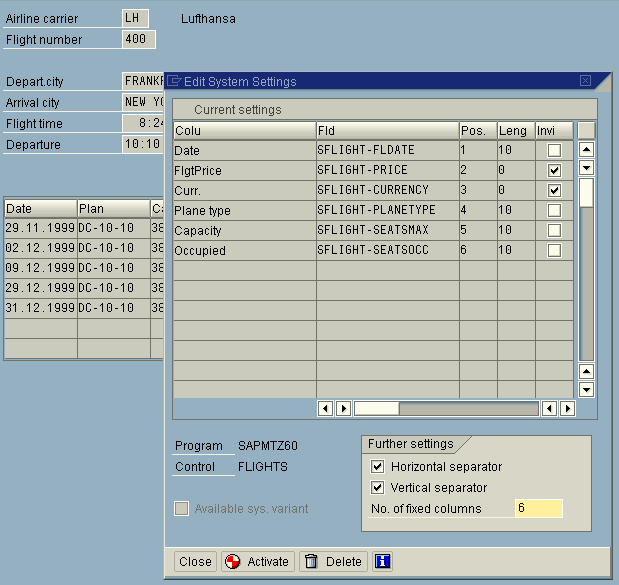
The table control attributes are displayed in the table Current settings. No value appears in the field Length for those columns whose width has been set to zero; you can deactivate them by selecting the setting Invisible.
You can also change other attributes of the current table control configuration. You can:

If you close the dialog box without choosing Activate, the settings remain unchanged.
Repeat the steps listed above if you want to alter the table control settings yet again. Each time you activate new settings, this variant overwrites the existing one.
Adjusting a Table Control Using a Screen Variant
For information on adjusting table controls using screen variants, see
Table Control Layout in Variants.
If administrator settings are available for a table control and a layout is set using a screen variant, then the layout of the screen variant takes effect.